Getting Started
This guide walks you through accessing and navigating the 4C:me Safe AI Platform for the first time.
Accessing the Platform
The platform is available at lizzy.hz.group.
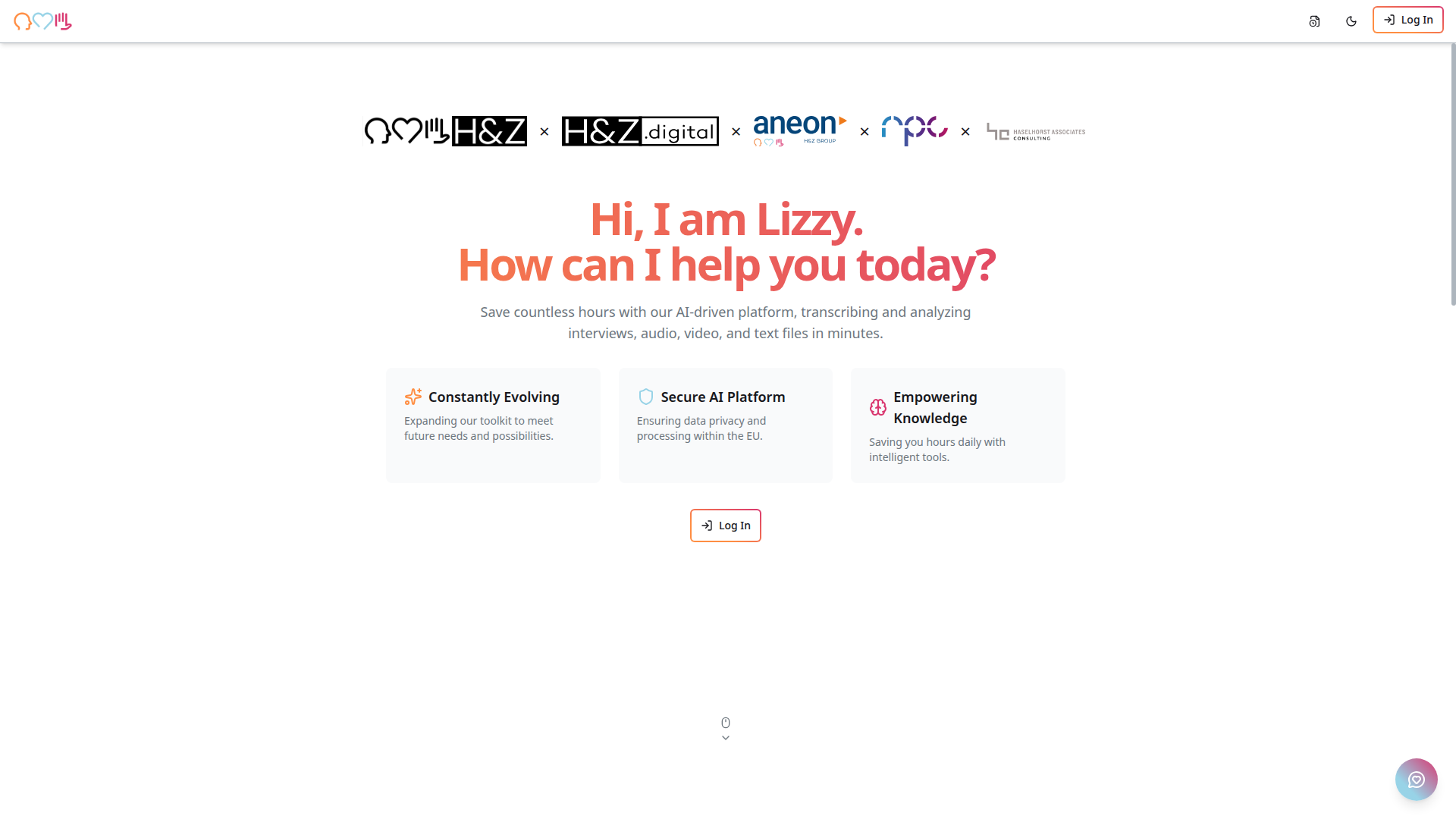
When you visit the platform, you will see the landing page featuring 4C:me's welcome message and an overview of available tools.
Signing In
The platform uses Microsoft Single Sign-On (SSO) for authentication.
Steps to Sign In
- Click the Log In button on the landing page or in the top-right corner of the navigation bar.
- On the login page, click Sign in with Microsoft.
- Enter your organization email address (e.g.,
yourname@hz.group) and click Next. - Enter your password and click Sign in.
- If prompted with "Stay signed in?", click Yes for a persistent session.
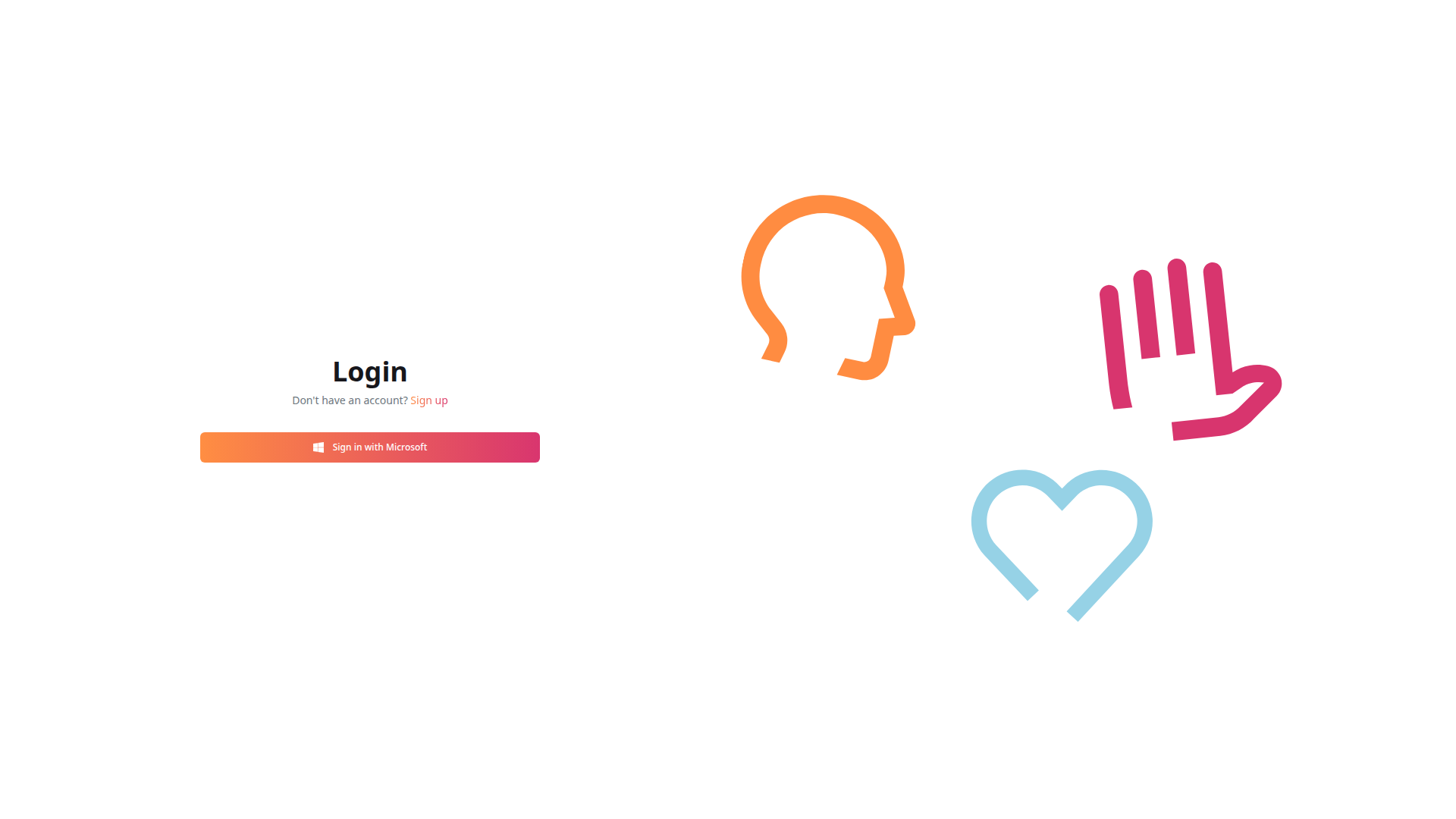
Your Microsoft account must be part of an authorized organization. Contact your administrator if you cannot access the platform.
Creating a New Account
If you do not yet have an account, you can sign up:
- On the login page, click Sign up.
- Choose one of two options:
- Sign up with Microsoft — Uses your existing Microsoft account
- Sign up with email — Fill in your First Name, Last Name, Email, and Password
- Review and accept the Terms of Service and Privacy Policy.
- Click Sign up with email or complete the Microsoft sign-up flow.
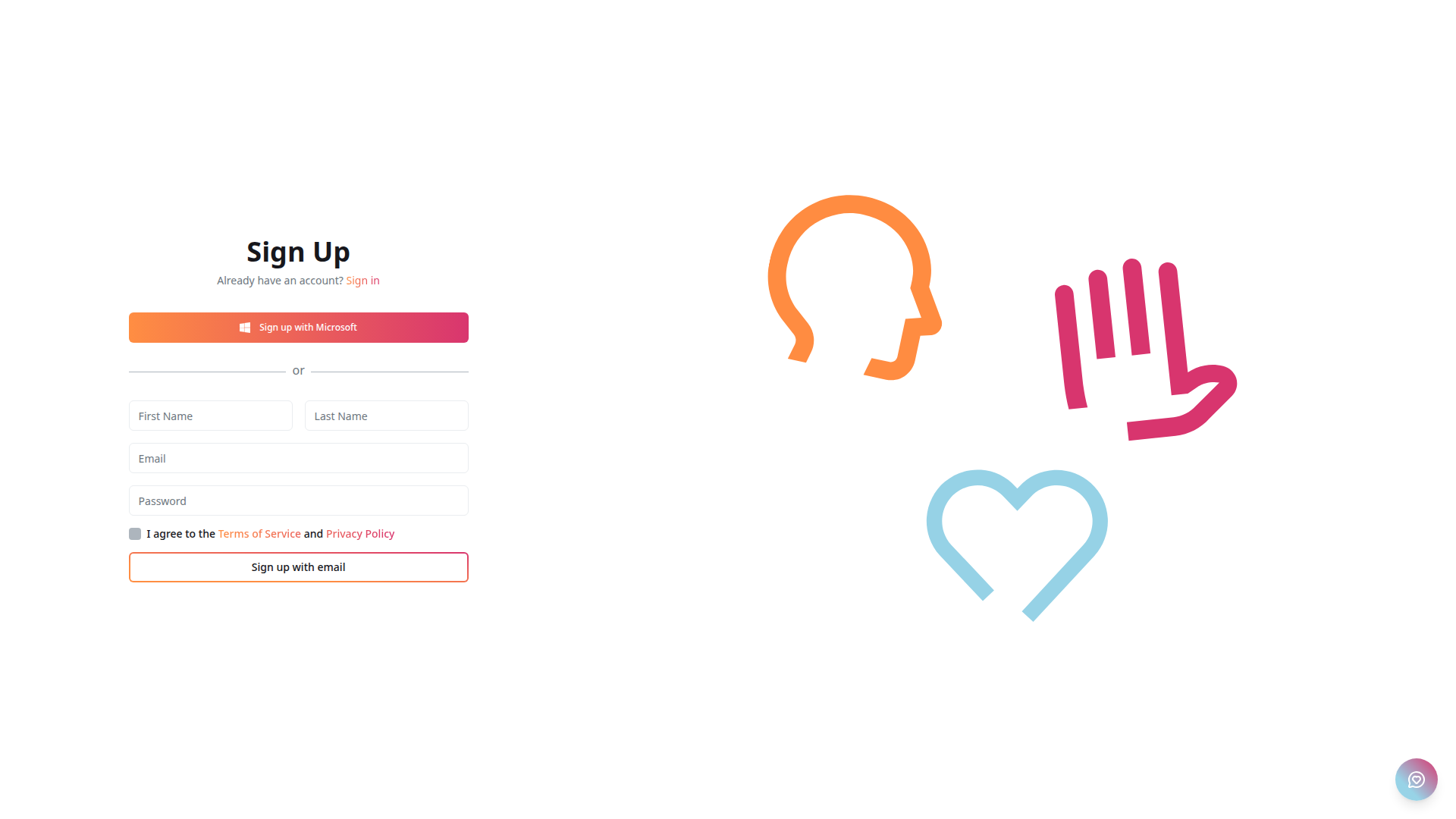
Email-based sign-up may require approval from an administrator before you can access all tools.
Navigating the Platform
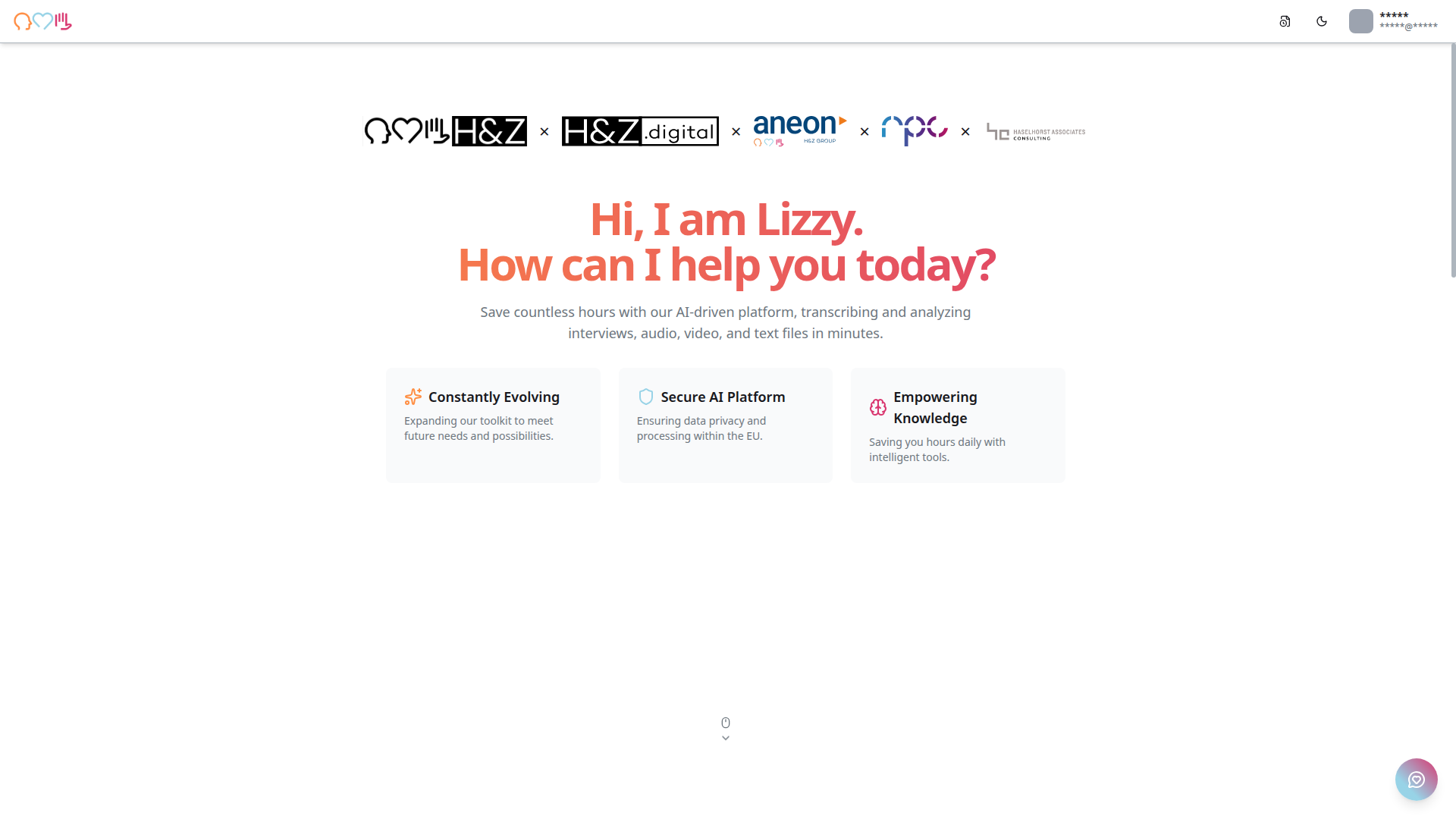
After logging in, you will see the main dashboard. The platform is organized into several key areas:
Landing Page
The landing page serves as your home screen, featuring:
- Discover section — Highlights the most-used tools
- Explore All Tools — A carousel showcasing all available tools with descriptions
- Tools section — A grid of all tools organized by category (AI Tools, Consulting Tools, etc.)
Navigation Bar
The top navigation bar includes:
- Platform logo (top-left) — Click to return to the landing page
- Updates icon — View the latest platform changes and release notes
- Theme toggle — Switch between light and dark mode
- Log In / User menu — Access your account settings
Sidebar Navigation
Once logged in, a left sidebar provides quick access to key areas via icons:
| Icon | Destination |
|---|---|
| Hamburger menu | Toggle sidebar expanded/collapsed |
| Home | Landing page |
| Wrench | Tools directory |
| Folder | Projects and files |
| Checkmark | Feedback |
| User avatar | Account menu (bottom) |
Tool Categories
Tools are organized into tabs:
- All Tools — Shows every available tool in a grid
- Categories — Groups tools by type (AI Tools, Consulting Tools, etc.)
Choosing a Tool
Each tool card on the landing page displays:
- Tool name and icon
- Category tags (e.g., Secure, AI, ChatBot)
- Description of what the tool does
- Login button to access the tool
Click on any tool card to navigate to that tool's interface.
Dark Mode
The platform supports both light and dark themes. To toggle:
- Click the moon/sun icon in the top-right navigation bar.
- The theme switches immediately across all pages.
Your theme preference is saved for future sessions.
Feedback
You can submit feedback at any time using the feedback button in the bottom-right corner of the screen:
- Click the feedback icon (chat bubble).
- Fill in your Name and Email.
- Select a Feedback Type (e.g., General Feedback).
- Write your feedback in the text area.
- Optionally click Capture Screenshot to include a screenshot.
- Click Submit Feedback.
Next Steps
- 4C:me — Start an AI-powered conversation
- Transcription — Transcribe audio and video files
- n8n — Automate workflows
- Platform Security — Learn about data privacy and compliance