Skills
Skills are reusable instructions the model can apply to your conversations with 4C:me. You author a skill once — a name, description, and Markdown body — and 4C:me pulls it into the conversation context whenever a relevant request comes up, so the same task is handled the same way every time.
Each skill is backed by a generated SKILL.md file (YAML frontmatter + Markdown body), which is what you see in the live preview when editing. That same file format is what the Import flow accepts.
Skills complement Agents (a persona end-to-end) and Template Prompts (reusable starting messages): a skill is a self-contained, on-demand reference 4C:me can pick up mid-conversation.
Opening the Skills Manager
Skills are managed from Settings → Skills.
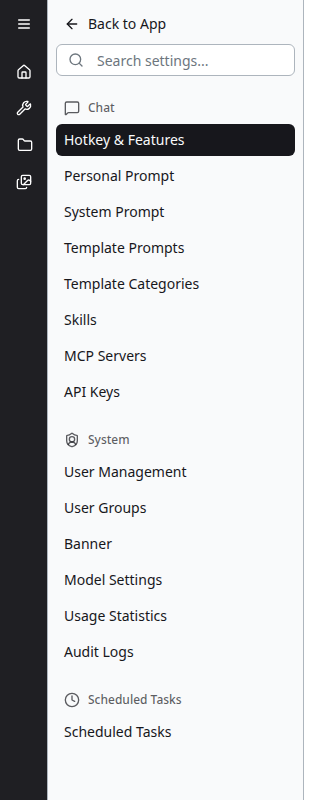
- Open Settings (avatar menu, top-right)
- In the Settings sidebar, under the Chat group, click Skills
Skills sits between Template Categories and MCP Servers.
The Skills Page
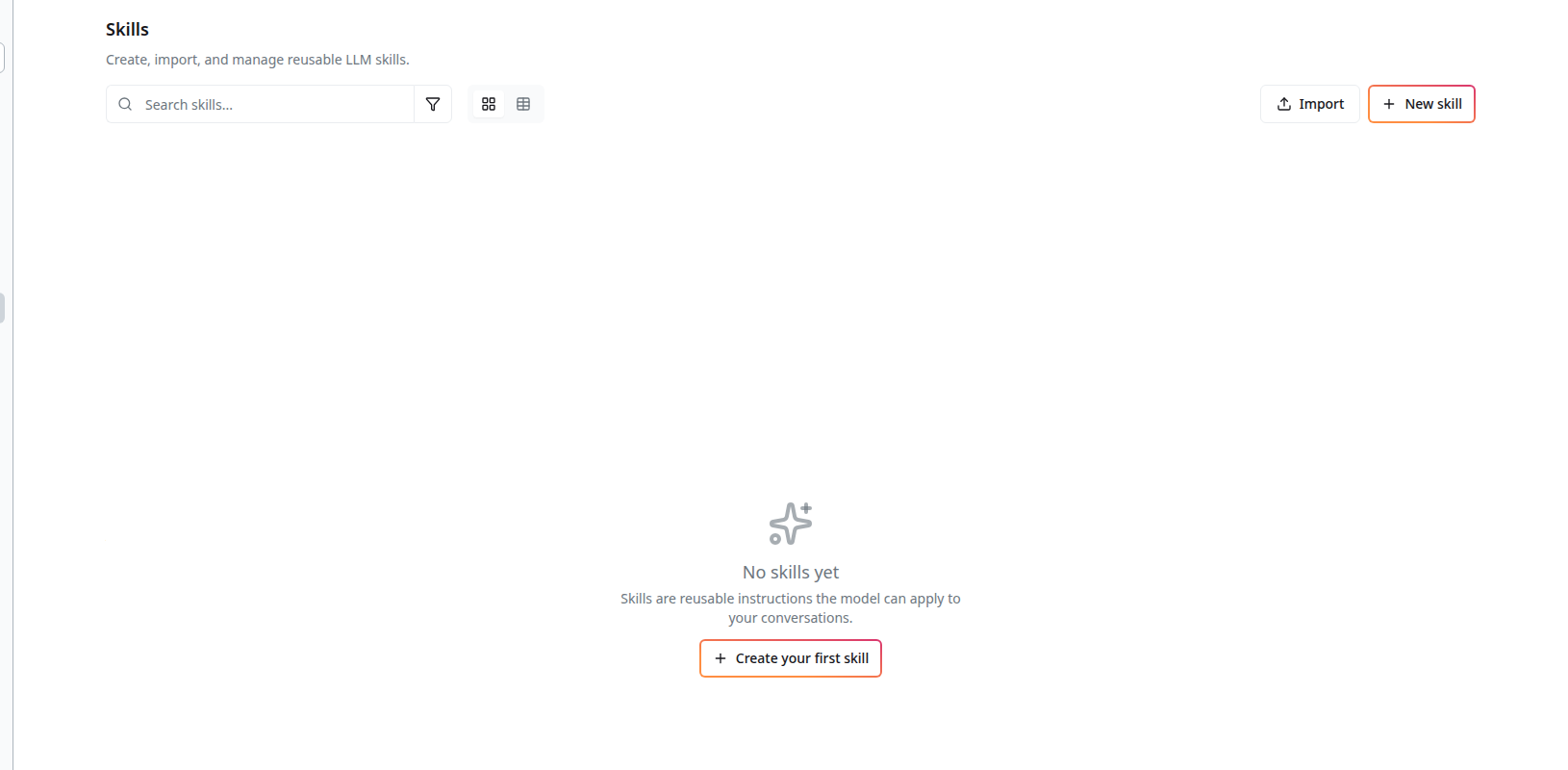
The header reads "Skills — Create, import, and manage reusable LLM skills." The toolbar exposes:
- Search skills… — filter the list by name
- Filter (funnel icon) — additional filters
- View mode — toggle between grid and table layout
- Import — bring in a skill bundle from disk or GitHub
- + New skill — create one from scratch
When you have no skills yet, the page shows a sparkle icon, the message "Skills are reusable instructions the model can apply to your conversations," and a + Create your first skill CTA that opens the same editor as + New skill.
Skill creation and import may be restricted by your administrator. If Import and + New skill appear greyed out, your account doesn't have permission to author skills — ask an administrator to enable it or to share an existing skill with your group.
Creating a Skill
Clicking + New skill opens the skill editor.
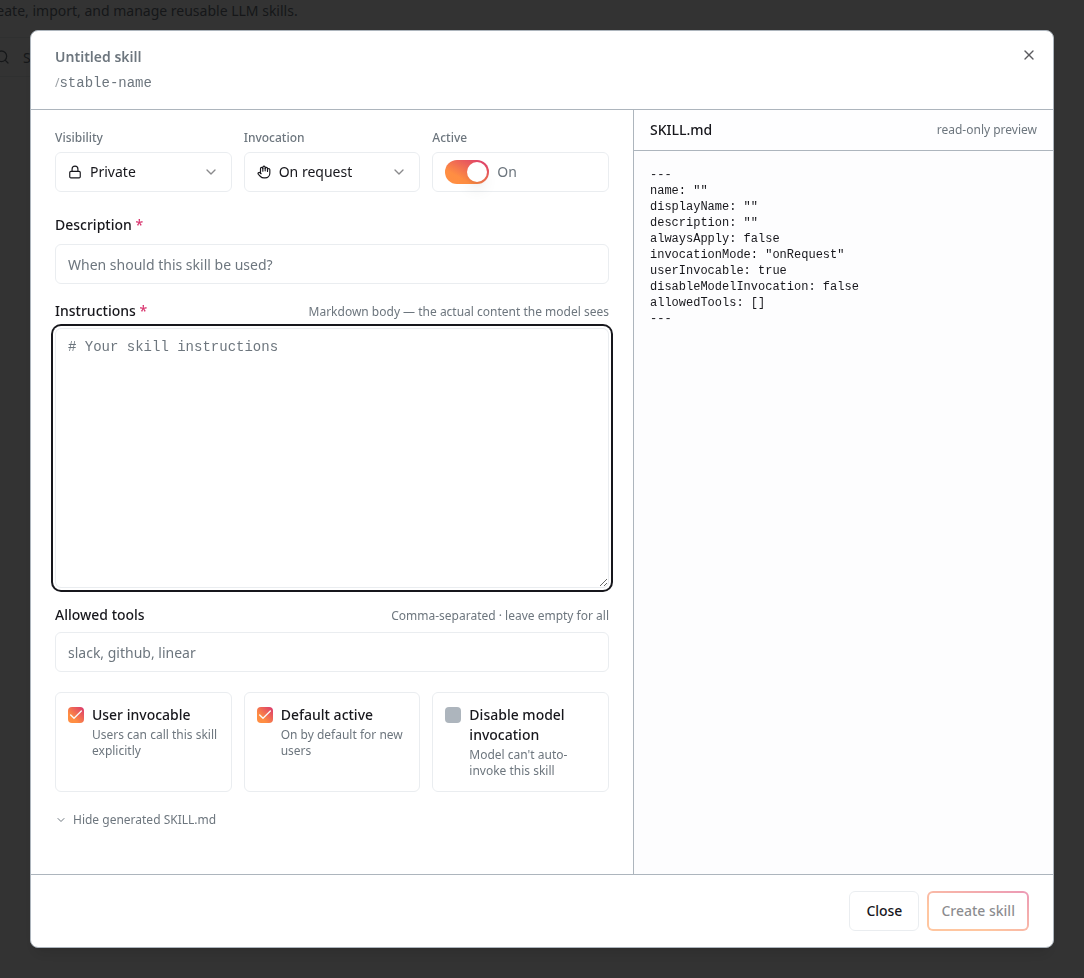
The editor has two columns: form fields on the left, a live SKILL.md preview on the right.
Header
- Name — starts as Untitled skill; click to rename. The platform auto-generates a stable slug (the small
/slug-nameline under the name) used as the skill's identifier - Close (×) — dismiss the editor; becomes a Discard button at the bottom once you have unsaved changes
Visibility, Invocation, Active
-
Visibility — controls who can see and use the skill:
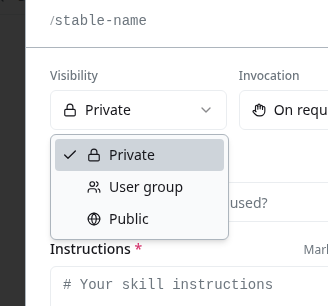
- Private — only you
- User group — limited to selected groups
- Public — everyone on the platform
-
Invocation — controls when 4C:me applies the skill:
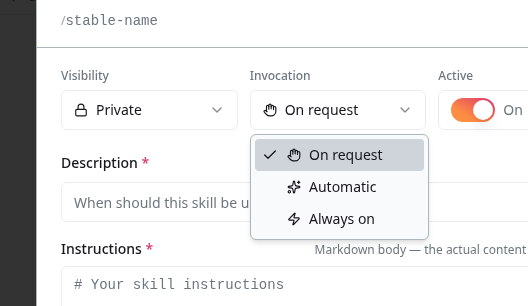
- On request (default) — the skill is loaded when the user or the model explicitly calls it
- Automatic — 4C:me can decide to load the skill based on the description matching the user's message
- Always on — the skill is always loaded into context for every conversation
-
Active — master toggle. Turn off to keep the skill in the library but stop it from being invoked anywhere.
Description (required)
A one-line summary that tells 4C:me when to apply the skill. This is the most important field for Automatic invocation — write it the way you'd phrase a request. Placeholder: "When should this skill be used?"
Instructions (required)
The Markdown body — the actual content the model sees. Use it for steps, conventions, rules, output formats, or references the model should follow. The placeholder is # Your skill instructions; anything you put here renders on the right side as the body of the generated SKILL.md.
Allowed tools (optional)
A comma-separated list of tools the skill is permitted to call when active (placeholder: slack, github, linear). Leave empty to allow all tools the conversation already has access to.
Checkboxes
Three behavior flags map directly to fields in the generated SKILL.md frontmatter:
- User invocable (default on) —
userInvocable: true. Users can call this skill explicitly from chat - Default active (default on) — controls whether new users get the skill pre-enabled
- Disable model invocation (default off) —
disableModelInvocation: trueblocks 4C:me from auto-invoking the skill, even under Automatic invocation
SKILL.md preview
The right column shows the file the platform will write for this skill — YAML frontmatter followed by your Markdown body:
---
name: ""
displayName: ""
description: ""
alwaysApply: false
invocationMode: "onRequest"
userInvocable: true
disableModelInvocation: false
allowedTools: []
---
Toggle it with Hide generated SKILL.md / Show generated SKILL.md at the bottom of the form.
Filled example
A typical filled editor looks like this:
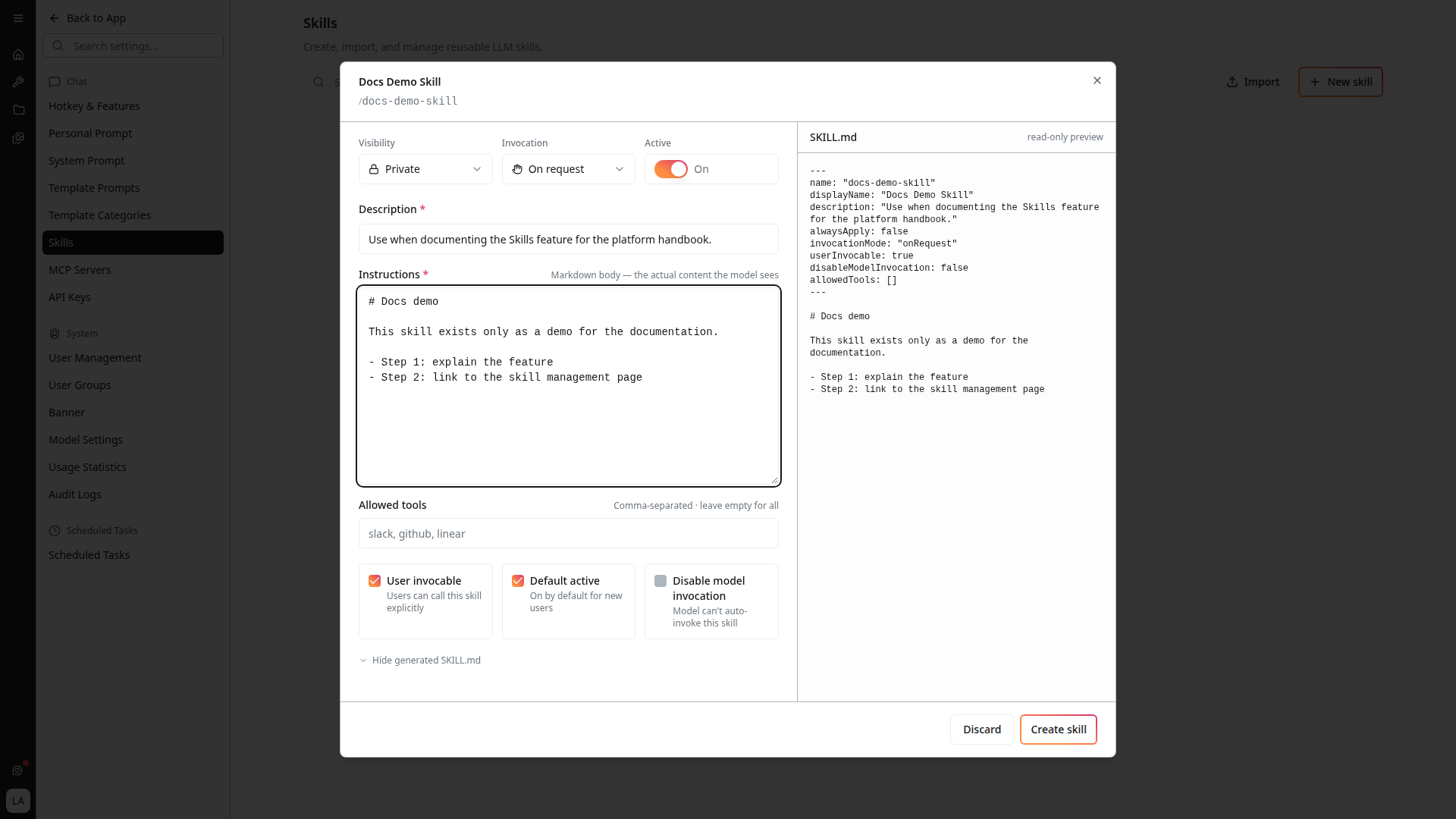
The right side updates in real time as you edit, so you can see the exact file the platform is about to save.
Click Create skill to save. The skill then appears in the Skills list.
Importing a Skill
Click Import in the toolbar to open the Import skill dialog. There are two source modes — Upload file and From GitHub.
Upload file
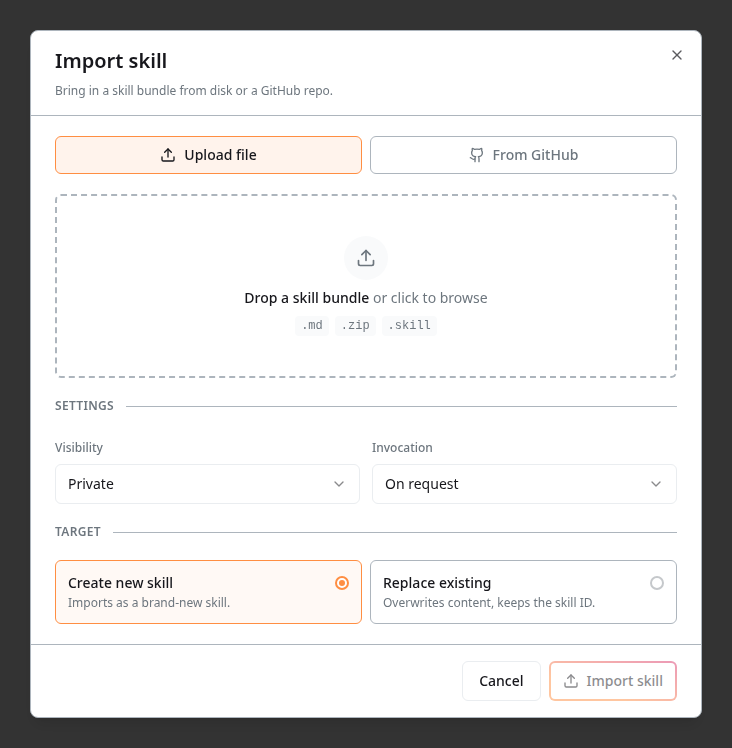
Drag a skill bundle into the dashed zone (or click to browse). Supported extensions: .md, .zip, .skill.
From GitHub
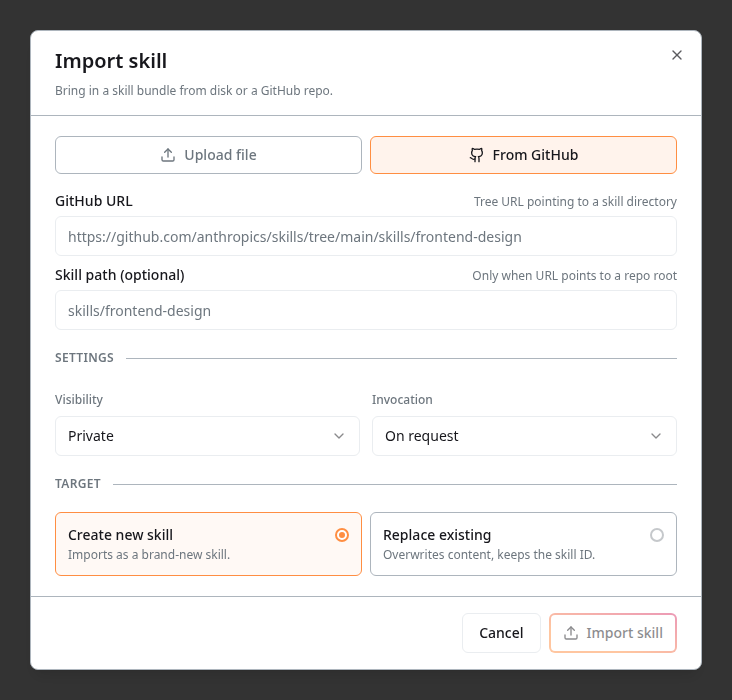
- GitHub URL — tree URL pointing to a skill directory, e.g.
https://github.com/anthropics/skills/tree/main/skills/frontend-design - Skill path (optional) — used only when the URL points to a repository root rather than a specific skill directory
Import settings
Both modes share the same configuration block at the bottom:
- Visibility and Invocation — same options as the editor (Private/User group/Public · On request/Automatic/Always on)
- Target:
- Create new skill — imports as a brand-new skill
- Replace existing — overwrites the content but keeps the skill ID, useful for re-uploading an updated version without breaking references
Click Import skill to bring it in.
How Skills Apply in Chat
How a skill enters a conversation depends on its Invocation mode:
- On request — the user (or the model) names the skill explicitly. The skill stays out of context until called
- Automatic — 4C:me matches the skill's description against the user's message and loads the skill's instructions when relevant
- Always on — the skill is loaded into every conversation, the same way a system prompt is
The Active toggle is a master switch — a skill must be Active to apply, no matter the invocation mode. Disable model invocation further restricts a skill so that only the user can call it, even under Automatic.
Treat the description as the most important field, especially for Automatic skills. The platform matches against it, so write it the way you'd phrase a request to 4C:me. "Use when reviewing supplier proposals" is more useful than "supplier stuff".
On-request and automatic skills are loaded only when matched, so a large skills library doesn't slow down ordinary chats. Use Always on sparingly — those skills are paid for in tokens on every turn.