Task Scheduler
The Scheduled Tasks feature lets you automate prompts that 4C:me runs on a recurring weekly schedule — for example, a Monday-morning competitor digest or a Friday wrap-up summary.
Accessing Scheduled Tasks
Open Settings and click Scheduled Tasks in the left sidebar (it has its own section below the Chat settings).
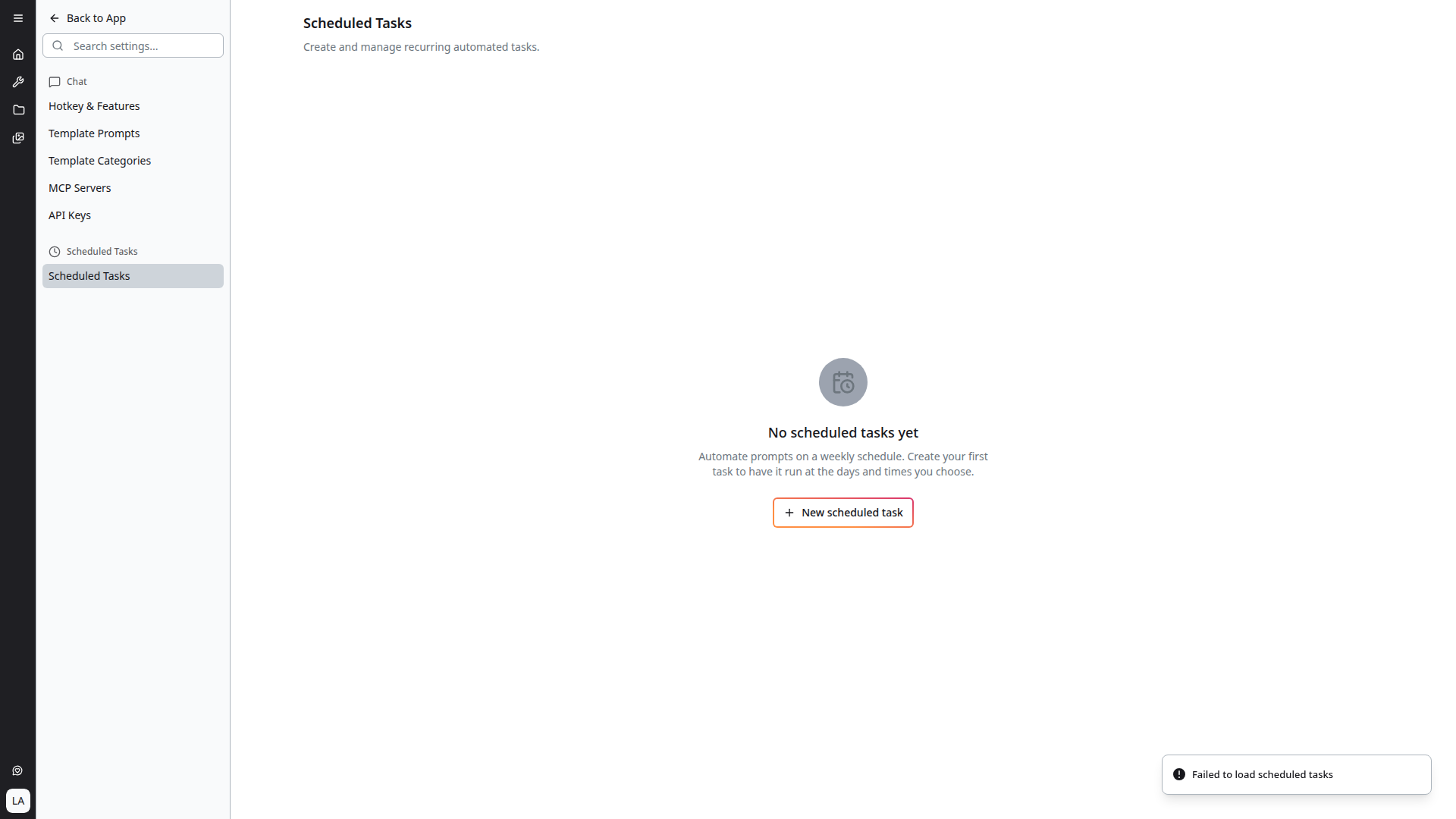
If you haven't created any tasks yet, the page shows an empty state with a + New scheduled task button.
Creating a Scheduled Task
Click + New scheduled task to open the New Scheduled Task dialog.
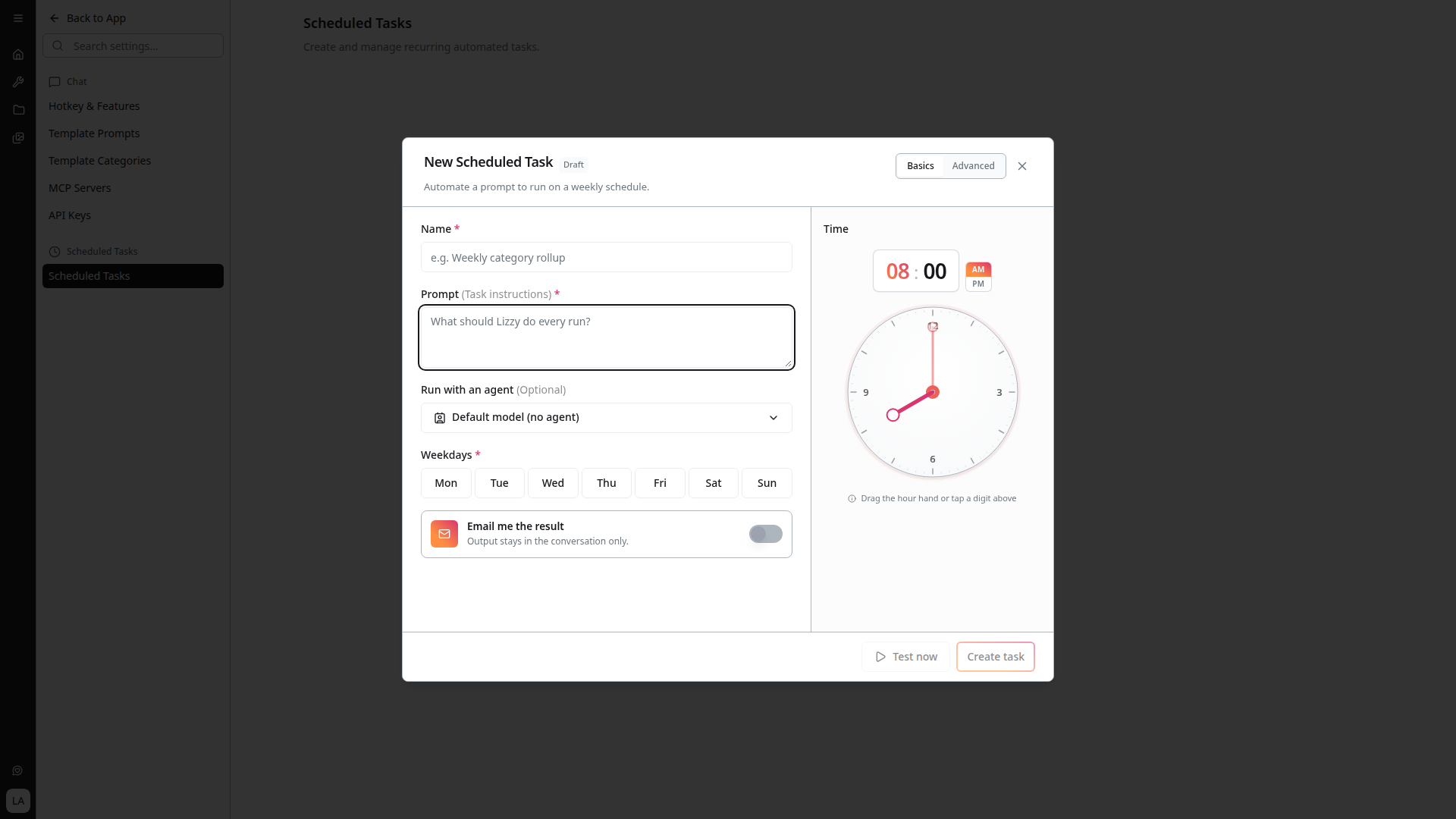
The dialog has a Basics and Advanced tab.
Basics
- Name (required) — A short label for the task, e.g. "Weekly category rollup"
- Prompt (required) — The task instructions. This is what 4C:me should do on every run; keep it self-contained because each run starts fresh, without conversation history
- Run with an agent (optional) — Pick an agent to run the task with, or leave as Default model (no agent)
- Weekdays (required) — Toggle the days of the week the task should fire on (Mon–Sun)
- Time — Pick the time of day using the clock face on the right; drag the hour hand or tap a digit, then toggle AM/PM
- Email me the result — When off, the task's output stays in the resulting conversation only. When on, you receive an email with the result once the run completes
Advanced
The Advanced tab exposes additional run configuration. Tasks save as a Draft until you click Create task, so you can switch between tabs freely without losing changes.
Test Now
Click Test now to run the prompt immediately as a one-off, without saving the task. Useful for checking that the prompt produces the output you expect before committing to a recurring schedule.
Create Task
Click Create task to save and enable the task. It will start firing on the next matching weekday + time.
Managing Tasks
Once you have tasks, they appear as cards on the Scheduled Tasks page. Each card lets you:
- Enable/disable the task without deleting it
- Edit the prompt, schedule, agent, or notifications
- Delete the task permanently
- View recent runs and their results
Background Execution
Scheduled tasks run server-side. You don't need to keep a tab open — runs are queued by the platform. See Background Chats and Task Recovery for related background behavior, and Deep Research for long-running deep research jobs.
Tips
- Make the prompt self-contained — each run is a fresh conversation, so include any context (project, audience, format) you'd normally rely on conversation history for
- Pair scheduled tasks with agents for a consistent persona, instructions, and tool access — see Agents
- Use Test now to validate the prompt before turning on the schedule
- Turn on Email me the result for high-signal tasks where you want a notification; leave it off for runs you intend to review in-app