Image Generation
The 4C:me Safe AI Platform supports AI-powered image generation and editing directly within 4C:me conversations.
Generating Images in Chat
To generate an image, simply describe what you want in your chat message:
"Generate an image of a modern office building with a green roof"
"Create a diagram showing the relationship between our teams"
The AI generates the image and displays it inline in the conversation.
Using the Image Generation Dialog
For more control over image generation, use the dedicated dialog. Click the colored toolbar button in the chat input area to expand the toolbar, then click the Image Generation button (image icon):
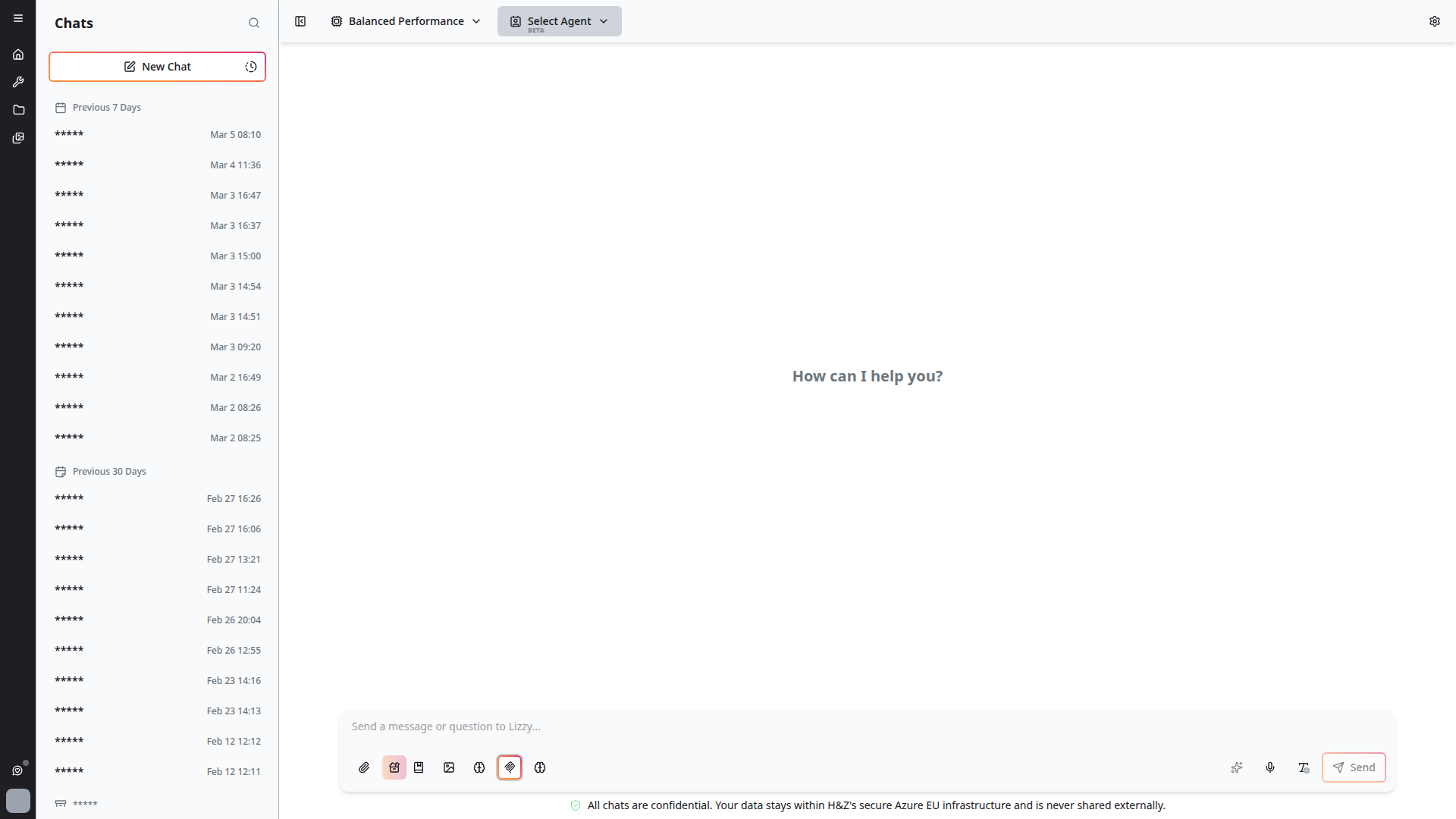
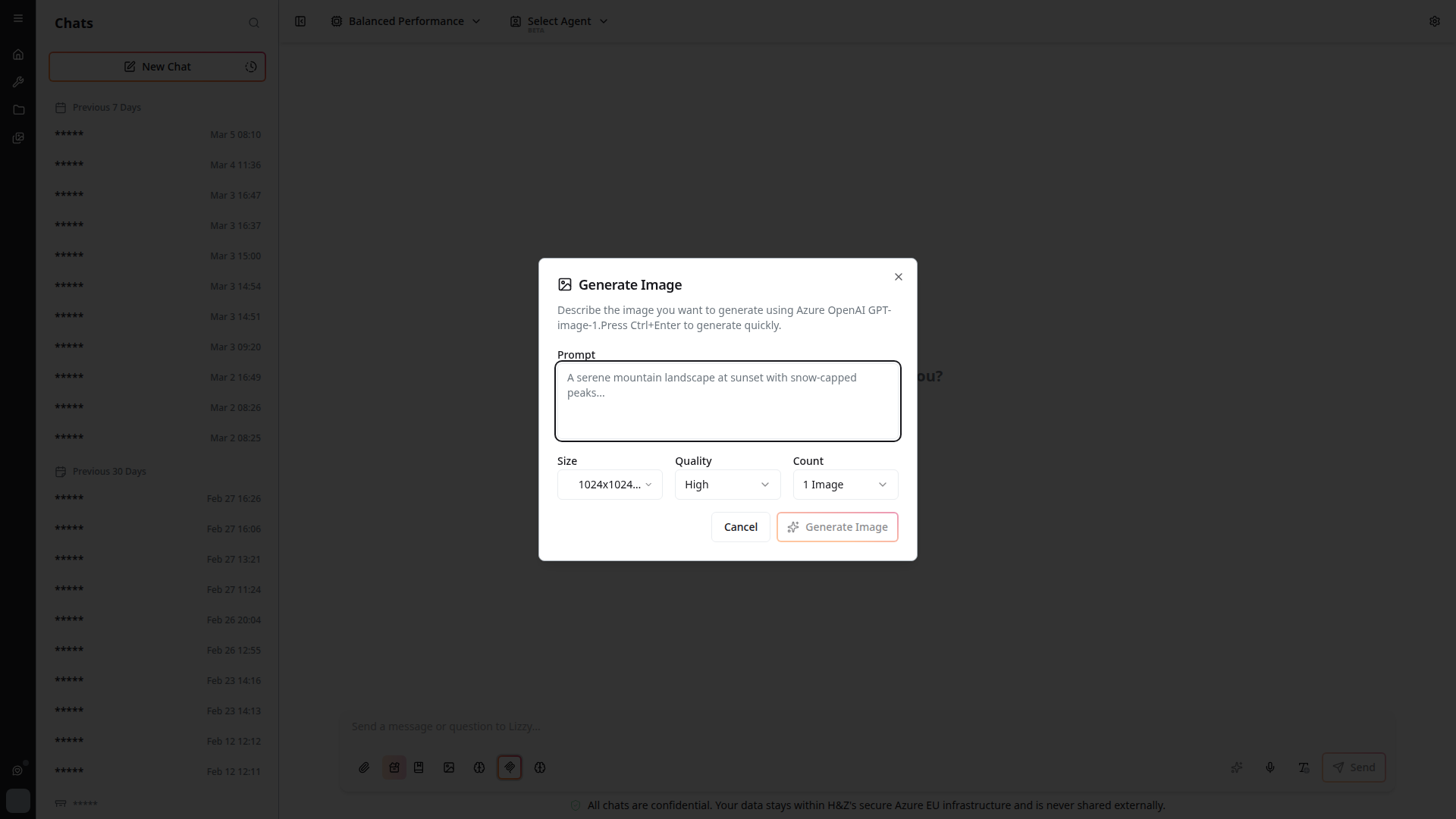
This opens the image generation dialog where you can configure your prompt, image size, quality, and count:
Editing Images
Follow up on generated images with editing instructions:
"Make the sky more blue"
"Add a logo in the top-right corner"
The AI modifies the existing image based on your instructions.
Image Features
Download
Click the download button on any generated image to save it locally.
Image Paste Support
You can paste images from your clipboard directly into the chat input:
- Copy an image from any application
- Use Ctrl+V (or Cmd+V on Mac) in the chat input
- The image is attached to your next message
Tips
- Be descriptive in your image generation prompts for better results
- Use follow-up messages to iteratively refine generated images
- Download images you want to keep, as they are part of the conversation
- Image generation may take a few seconds depending on complexity